An optional PIN, so it's really you
Ervona is one login, one person. If you want an extra lock on top of your password, turn on a sign-in PIN from your account page. Once it's on, Ervona asks for it every time you sign in on ervona.ai and desk.ervona.ai, and it also keeps billing and account changes behind that same PIN.
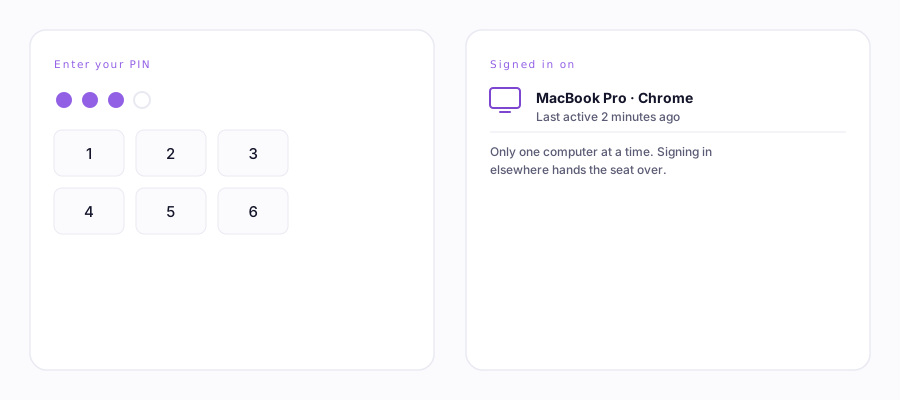
Turning it on
- Open Your account on ervona.ai and set a PIN, 6 digits or more.
- Check Require my PIN every time I sign in. Turning it on or off is confirmed with a 6-digit code emailed to the account's address on file, the same way changing your password would be. No code, no change, so nobody who only has your browser session can switch it off.
- From then on, every fresh sign-in asks for the PIN before anything else loads.
Forgot your PIN? Nobody can look it up, PINs are stored scrambled, with no "show PIN" anywhere. The Forgot PIN button emails a one-time reset code to the account's address, entering it clears the PIN so you can set a fresh one.
Other ways to sign in
Your PIN protects billing and account changes specifically. For the sign-in itself, Ervona also supports two-factor authentication and a passwordless "email me a link" option, both from your account's sign-in settings, if a password (or a password plus PIN) isn't the setup you want.
One computer at a time (your "seat")
This is about signing in, not about the Desk running. Your seat is the one computer your login is signed in on — nothing you set up or pay for. It applies to the browser extension and to signing into this dashboard. The Desk itself runs on our servers around the clock and never uses a seat: it keeps sending, replying, and booking whether you're signed out, on another computer, or asleep. Taking your seat back on a new computer never pauses the Desk.
Sign in somewhere new and the first screen says your seat is in use on the other computer, with a button to use Ervona on this device instead. Press it and this computer takes over the sign-in, the other one signs out within a few records, and nothing is lost. Press it as often as you like; moving between your laptop and your desktop is normal and costs nothing.
If you keep landing on that screen on a computer you use every day, it is usually old sign-ins still holding your seat: every fresh install or cleared browser storage counts as a new computer. Ervona lets go of anything that has not been used for ten days, so this clears itself, and taking your seat back works in the meantime.
Two people who both need to be working at once need two logins, which is Enterprise, not one shared account.
Running a team
An Ervona account is one person by design, one desk, one company mailbox, one CRM connection. To give a whole team their own logins, their own connected mailboxes, and reports broken down per rep, that's Enterprise: every member is a real account with their own sign-in, and an admin console that can provision, cap, pause, and audit access, with no access to anyone's inbox or message content.
Used to have profiles? Ervona once let you keep a few named profiles inside one account and pick who was working at sign-in. That is gone. It could never tell who was really behind a send, because everyone typed the same password, so the numbers it split out were a guess dressed up as a fact. Real per-person reporting needs a real login each, which is Enterprise. Your history is untouched, and past sends keep the name they were filed under.