Set up a sending mailbox on a subdomain
Your company mail runs on yourcompany.com, but cold outreach should never send from there. The trick: your existing Google Workspace or Microsoft 365 can carry MORE than one domain. You add outreach.yourcompany.com to the account you already pay for, create a mailbox on it, and your main domain's reputation never touches a cold email.
No new account needed. You are not signing up for a second Google Workspace or Microsoft 365. You are adding a domain to the one you have. A new mailbox on it is a normal paid seat, about the cost of one lunch a month, and it is the seat doing all your outreach.
Google Workspace, about 15 minutes
- Add the subdomain. Go to admin.google.com → Account → Domains → Manage domains → Add a domain. Type
outreach.yourcompany.comand pick Secondary domain. Google shows a TXT record to prove you own it. Add that record where your domain is managed, then press Verify. - Create the sending mailbox. Directory → Users → Add new user. In the email field, open the domain dropdown and pick the new subdomain, so the address reads like
jordan@outreach.yourcompany.com. This is a normal licensed seat. - Point mail records at Google. On the SUBDOMAIN, add the MX record Google shows you (so replies land), plus SPF: a TXT record with
v=spf1 include:_spf.google.com ~all. - Turn on DKIM. Apps → Google Workspace → Gmail → Authenticate email. Pick the subdomain, generate the key, publish the TXT record it gives you, then press Start authentication.
- Check it. In the Desk portal, run the deliverability check on the subdomain. SPF, DKIM, DMARC, and MX should all read found (DMARC can inherit from your main domain). Then press Connect Gmail and sign in as the new mailbox.
Microsoft 365, same idea
- Add the subdomain. Microsoft 365 admin center → Settings → Domains → Add domain. Type the subdomain, verify with the TXT record it shows, and let the wizard list the DNS records.
- Add the records. The wizard gives you the MX record, SPF (
v=spf1 include:spf.protection.outlook.com -all), and two CNAME records. Add them at your DNS provider. - Turn on DKIM. Go to security.microsoft.com → Email authentication settings → DKIM, pick the subdomain, and enable signing. It asks for two more CNAME records (selector1 and selector2). Add them, then enable.
- Create the mailbox. Admin center → Users → Add a user, and pick the subdomain for the address. Assign a license with Exchange email.
- Check and connect. Run the Desk deliverability check on the subdomain, then press Connect Outlook and sign in as the new mailbox.
The separate-domain alternative
Some teams prefer a whole separate domain (like get-yourcompany.com) instead of a subdomain. It costs about ten dollars a year at any registrar and gives maximum separation: even the subdomain association with your main name is gone. The setup is identical, add the new domain to your existing Google Workspace or Microsoft 365 and follow the same steps. Subdomain or separate domain are both fine. Sending from your MAIN domain is the only wrong answer.
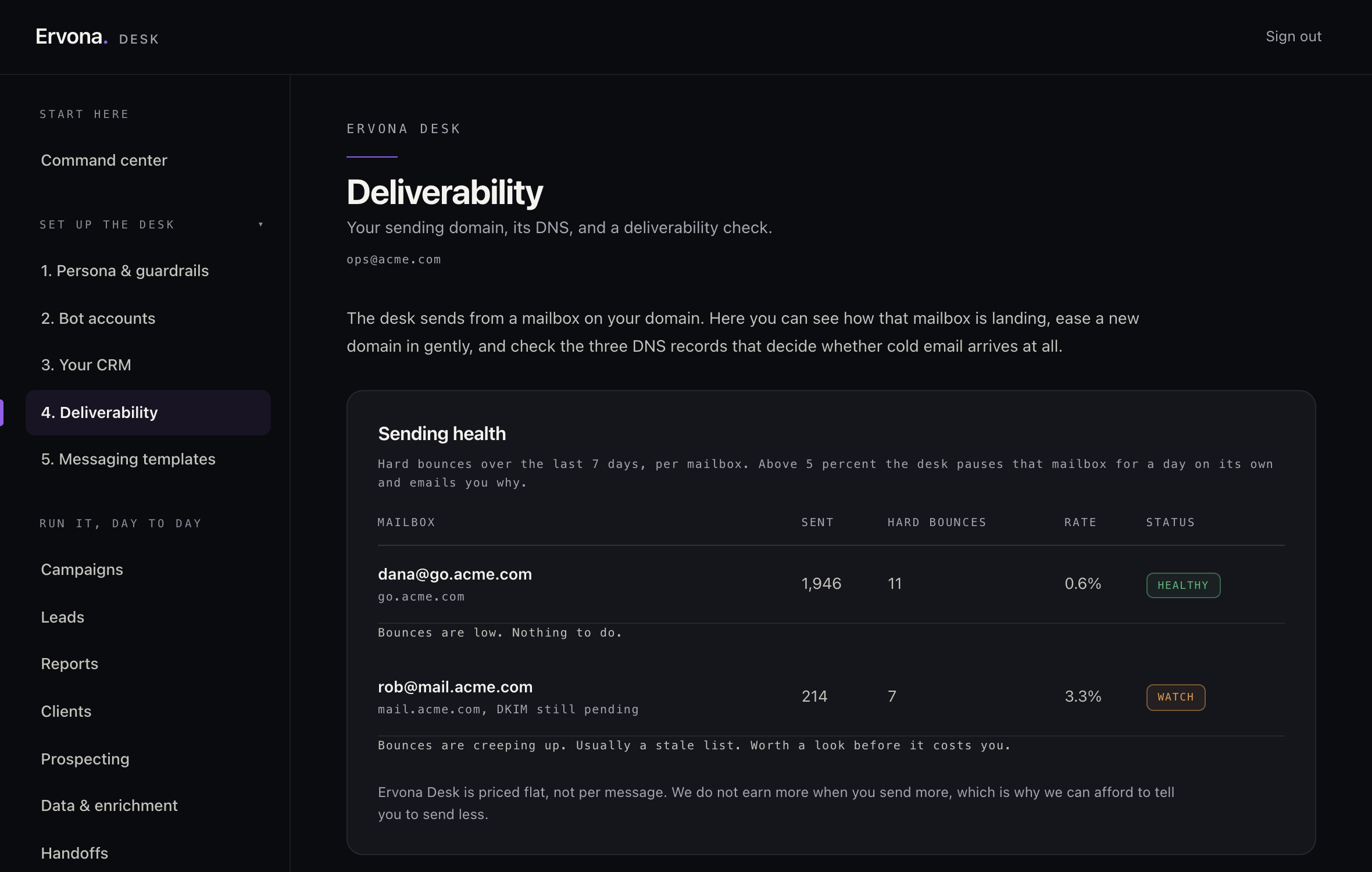
Warm it up before real volume. A brand-new domain that sends 100 cold emails on day one gets flagged fast. Start with a handful a day and build up over two to three weeks. Desk campaigns have the warm-up ramp on by default, so a new mailbox cannot be talked into full speed on day one. It eases up from about 20 a day, doubling weekly until it reaches your campaign pace. If your domain has been sending for a while already you can switch it off under Deliverability, in the desk portal (the switch in the picture above), and your campaign pace takes over.