CRM permissions and browser access
Ervona only asks Chrome for access to the sites it actually needs to run on, and asks for each one separately, at the moment it's actually needed — not all at once at install.
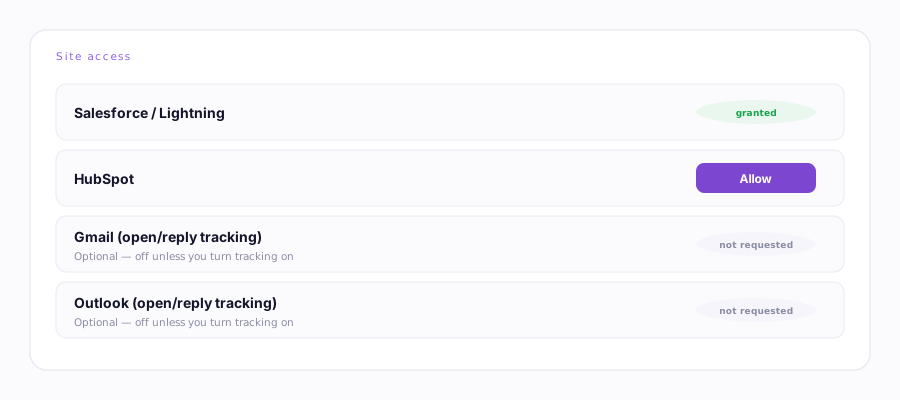
Why Salesforce (or HubSpot) but not both
Every Ervona account connects to exactly one CRM — Salesforce or HubSpot, never both at once. Whichever one you're not using would just be an unused permission sitting on your install, so Ervona only ever requests the one you actually connected. Salesforce's domains are requested up front because it's the more common setup; HubSpot access is requested with one click the first time you tell Ervona you're a HubSpot account.
Why Gmail and Outlook are optional
Webmail access (Gmail, Outlook) is only needed for open/reply tracking on emails you send by hand outside of a CRM batch — a separate, optional feature. Chrome treats access to your inbox as a more sensitive permission than access to your CRM, so it's never requested unless you specifically turn tracking on.
Granting a permission
- Popup → the relevant "Allow Ervona on…" prompt, or
- Settings (Options page) → the toggle for that integration.
Either way, it's a standard Chrome permission prompt — you're granting it to Chrome, not to Ervona's servers, and it only covers the specific site.
Revoking a permission
Two ways, both work: flip the toggle off in Ervona's Settings, or go to chrome://extensions → Ervona → Site access and remove it directly from Chrome's own permissions UI. Either one takes effect immediately — no reload needed for the permission itself, though a CRM tab that was already open may still need a refresh to stop running the older, now-unauthorized script.
Troubleshooting
- A banner keeps asking for HubSpot access even though I said yes. Reload the HubSpot tab — the grant took effect, but that specific tab loaded before it did.
- Tracking toggle is on but nothing tracks. Check
chrome://extensions→ Ervona → Site access — make sure the webmail site itself (not just Ervona) shows as allowed.