Importing a CSV correctly
Bring your own list, map its columns once, and let enrichment fill in whatever's missing before it ever reaches a campaign.
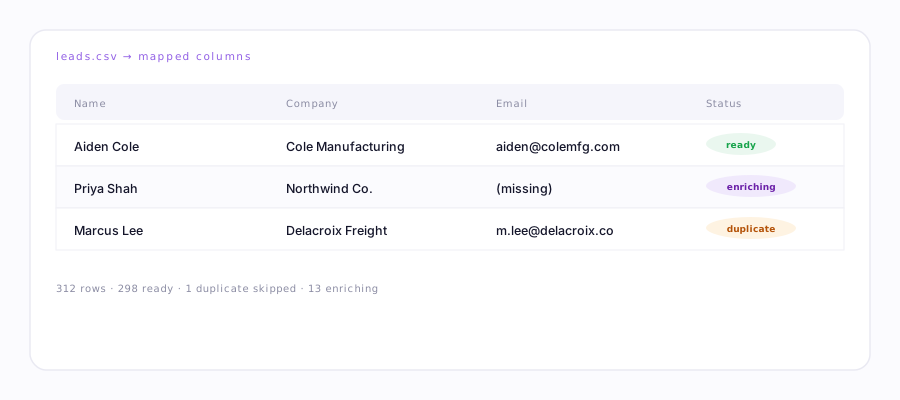
What to check before you upload
- A header row. Column names don't need to match anything exact — you'll map them by hand next — but a first row of labels makes mapping faster and less error-prone.
- A usable email column, or enough to find one. If some rows are missing an email but have a name and company, enrichment (below) can often fill it in — but a row with neither an email nor enough to find one will be skipped.
Column mapping
After upload, match each of your columns to a field — email, first name, last name, company, title, and so on. Anything you don't map is simply left out; it doesn't need to match every field to import.
Duplicate handling
Two rows with the same email address, within the same list, are automatically deduplicated — only one survives. If a person is already in the campaign you're importing into (from a previous import or a different source), that row is skipped rather than added a second time.
Filling in what's missing: enrichment
For rows with gaps — a name but no email, no title, no company size — enrichment tries a few sources before it ever reaches a paid one: your connected CRM first, since that's free and already yours, then a few free inference passes, and only then an outside provider if you've added your own Apollo, PDL, or Hunter key. It never blocks the rest of your import waiting on this — a row that can't be enriched still imports with whatever it already had.
Bring your own key if you have one; a small shared daily allowance covers light use if you don't. Lead lists & enrichment →
After import
Preview what will actually be added — the count, and a sample of rows — before anything is promoted into a live campaign. Nothing sends automatically just from importing; you still start the campaign yourself.
A big list, first time: import it, then hold the campaign in Draft and spot-check a dozen rows before pressing start. Bad source data is far easier to catch in a preview than after 200 sends.