Filter your CRM, then let the desk work it
You decide who the desk reaches out to, not the other way around. You build a filter on your own CRM fields, you see how many people match, and only then does the desk start working that exact set. The desk never wanders your CRM on its own.
The idea in one line
You set the parameters. A resolver turns them into the exact list of matching contacts. The desk works that list as your persona. Selection is read-only, so the desk is never guessing which records to open.
How a filter is built
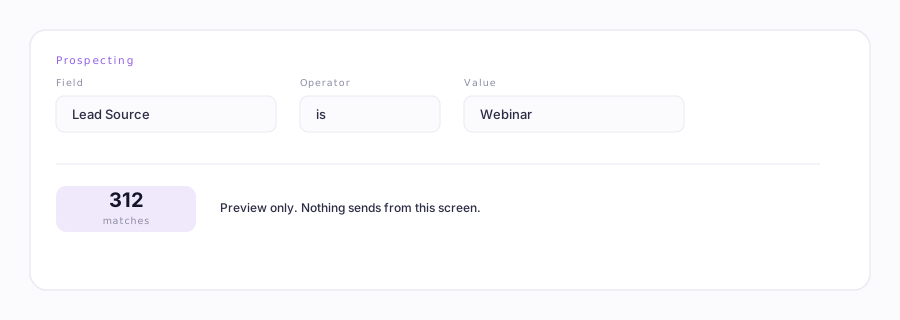
A filter is a few simple conditions on your CRM fields. Each condition has three parts:
- A field, like job title, lifecycle stage, industry, or company size. These are pulled live from your own HubSpot account, so you see the same fields your team uses.
- An operator, like is, is not, contains, greater than, before, or is one of. The choices change to fit the field. A number gets greater than and less than. A dropdown gets is one of.
- A value, the thing you are matching against. For a dropdown field you pick from the real options.
Groups: ALL and ANY
Conditions live in groups. Inside a group, every condition must be true (that is the ALL rule). Across groups, any group can match (that is the ANY rule). So one group might be "job title contains VP AND company size over 200," and a second group might be "lifecycle stage is a lead in Texas." A contact who fits either group is in.
A quick way to think about it. ALL inside a group narrows things down. ANY across groups widens things back out. Most good filters are one tight group.
Preview before you commit
Press Preview matches and the desk tells you "about N contacts match" and shows a small sample. Nothing is imported and nothing is sent. This is your chance to loosen a filter that matches nobody or tighten one that matches your whole database.
There are sensible caps so a filter stays readable and a run stays safe: up to 5 groups, up to 6 conditions in a group, and 18 conditions in total. The screen tells you when you hit one.
Opted-out people are never pulled in
This is enforced at selection time, not just at send time. Before your filter runs, the desk quietly adds two rules to every group: the contact has an email, and the contact is not opted out. So a person who opted out is never even added to a campaign, on any branch of your filter.
Save it as an ICP
Happy with a filter? Save it as a named ICP preset (your ideal customer profile). Next time you can load it in one click and run it again, or tweak it for a new campaign. Presets are stored on your account, not on this computer.
Turn a filter into a campaign
When you press Create campaign from this filter, the desk imports the matching contacts into a fresh campaign and starts it paused, with a warm-up ramp on top. From there it lives in the Worklist, where you can watch the desk work each lead.
The plain-English box (optional)
If you would rather describe your customer in words, type something like "SaaS founders in Texas, 50 to 200 employees, no email from us in 30 days." A model turns it into a filter and loads it into the builder for you to review and edit. It never runs on its own, and your prospect's own text is never treated as instructions. You always get the last word before anything sends.
What about Salesforce?
HubSpot filtering runs on HubSpot's free API, so the builder lives right here in the portal. Salesforce is different because its API is paywalled on some editions. For Salesforce you build a filtered list view inside Salesforce itself and send it to the desk from the Ervona extension. Same idea, different door. See HubSpot and Salesforce, explained.