Updating and reloading the extension
Chrome updates extensions on its own in the background, quietly, usually within a day of a new release. The one thing that update can't do for you: a CRM tab you already had open before it happened. That's the part covered here.
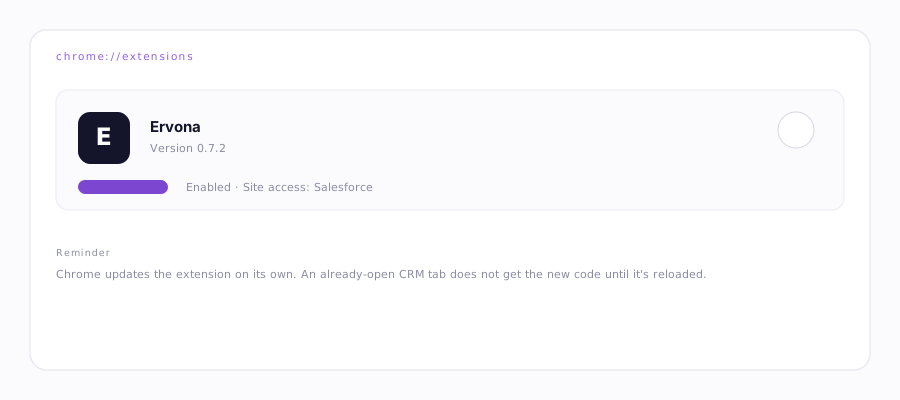
Check your installed version
Two places show it:
- Popup → Diagnose this page — the report header names the version running right now.
chrome://extensions→ the Ervona card shows its version under the name.
Force an update
Chrome checks for updates on its own schedule, but you don't have to wait: open chrome://extensions, turn on Developer mode (top right) if it isn't already, and click Update. Or just close and reopen Chrome — it checks on every launch.
Why a CRM tab needs its own reload
Updating the extension replaces the code Chrome will inject into new tabs and page loads from that point on. It does not reach into a CRM tab that's already sitting open — that tab is still running whatever code was injected when it last loaded, which is now out of date. This is what a stale content script is, and it's the single most common "nothing's working" report.
What it looks like
Buttons in the popup do nothing, or you see: "Ervona isn't connected to this CRM tab yet. Batches, Send One and mapping won't respond until it is." Ervona detects this itself and shows the message with a one-click fix right there.
The fix
- Reload the CRM tab. Just the tab — a normal browser refresh (⌘R / Ctrl+R), or the button in the banner if Ervona showed one.
- Still stale? Go to
chrome://extensionsand click the refresh icon on the Ervona card itself, then reload the CRM tab again. - Still nothing? Check for a duplicate Ervona install (two entries on the extensions page) — remove the extra one.
Reloading the extension alone never fixes this. It has to be the CRM tab. That's the one Chrome won't touch on its own.