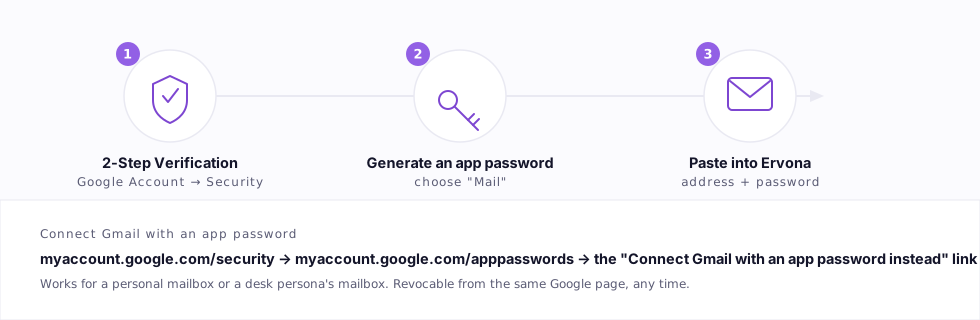
Connect Gmail with an app password
Next to "Continue with Google" wherever Ervona asks you to connect a Gmail mailbox, there is a smaller link: Connect Gmail with an app password instead. It reaches the exact same result — a working mailbox connection — through a password instead of Google's one-click sign-in screen. One extra step, nothing else different.
Why this exists
Google's one-click "Continue with Google" button depends on Google's own review of the app asking for access, and that review can be mid-flight, temporarily unavailable, or simply not something you want to wait on. An app password sidesteps it entirely — it is a normal part of how Gmail has always worked, not a workaround. Use whichever one is in front of you; both connect the same mailbox the same way.
Where you'll find the link
The same connect option appears in three places, depending on which mailbox you're connecting:
- Your account page (ervona.ai/account) — connects your own mailbox so Ervona can track your reply rate for reports.
- Settings → Mailbox tab — the fuller setup: your own mailbox, plus whether Ervona drafts for your approval or answers on its own.
- Desk portal → Mailboxes & texting — connects a persona's own mailbox, a completely separate address the AI SDR sends and receives from on its own.
All three use the exact same app-password flow described below — only which mailbox ends up connected changes.
Connect it
- Go to myaccount.google.com/security and turn on 2-Step Verification, if it isn't on already. Google requires this before it will generate an app password.
- Go to myaccount.google.com/apppasswords and generate one. Choose Mail as the app — the name of the other dropdown doesn't matter. Google shows the password once, as 16 characters, usually in four groups of four with spaces. The spaces are just for reading it; Ervona strips them automatically.
- Back in Ervona, click Connect Gmail with an app password instead, paste in the Gmail address and the password, and click Connect.
This password only works with a mail app. It can't change your Google password, reset your account, or reach anything outside your inbox. Revoke it any time from the same Google page you generated it on — Ervona's connection stops working immediately, with no separate step on Ervona's side.
If it says it couldn't connect
- "Gmail rejected that app password": almost always a copy-paste issue — re-copy it from Google rather than retyping it, and make sure the Gmail address you entered is the one you generated the password for. If 2-Step Verification has since been turned off, the password stops working; generate a new one.
- App passwords aren't offered on the Google page at all: usually means the account has no 2-Step Verification yet (step 1 above), or it's a Google Workspace account whose admin has switched app passwords off org-wide. That second case needs an admin's help, or the regular "Continue with Google" button instead.
- It connected, but mail isn't showing up: make sure IMAP is turned on for the account — in Gmail, Settings → See all settings → Forwarding and POP/IMAP → Enable IMAP. This is a separate switch from the app password itself.