HubSpot and Salesforce, explained
The desk works with both HubSpot and Salesforce, but it reaches them by two different doors. HubSpot has a free API, so the desk talks to it directly and in real time. Salesforce paywalls its API on some editions, so the desk uses the Ervona extension to drive a rep's own logged-in tab. Same desk, two sets of hands. Here is how each one works and when to use it.
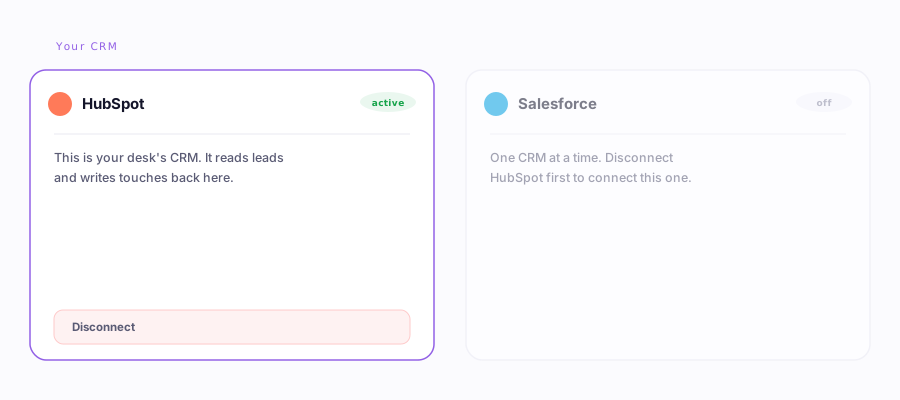
The short version
| HubSpot | Salesforce (extension) | Salesforce (dedicated account) | |
|---|---|---|---|
| How it connects | Direct API with a pasted token | Drives a rep's open Salesforce tab | Direct API over a connected account |
| Works on every edition | Yes, free on every tier | Yes, including Professional | Enterprise and Unlimited (API included) |
| API cost to you | None | None | Included in your edition |
| Write-back timing | Real time | When a rep has Salesforce open | Real time, no open tab needed |
| Setup | Paste a private app token | Install the extension | Connect a dedicated account, once |
HubSpot: direct, free, real time
HubSpot's API is free on every tier, including the free one, so the desk talks to it directly from the server. There is no browser bridge and nothing to keep open. The desk:
- Filters your contacts on your live HubSpot fields and imports the matches into a campaign. See Prospecting for the filter builder.
- Sends as the persona from the desk's own mailbox, on a pace, with a warm-up ramp.
- Writes back in real time. When a reply comes in, it logs the email, drops a short note on the contact, moves the stage or lead status, and sets opt-out, all straight onto your HubSpot records.
Because the API is free everywhere, HubSpot is the smoothest path: connect it once with a token and everything is real time.
Salesforce: the extension bridge, works everywhere
Salesforce is different. It paywalls REST API access on Professional edition, which means an API-only tool cannot serve a Professional customer at all unless that customer pays Salesforce extra to unlock the API. So the desk does not depend on the API. It uses the Ervona extension to act inside a rep's real, logged-in Salesforce tab, driving the same buttons a person would.
This is the wedge, not a workaround. Because the work happens in the rep's own browser session, it costs no API dollars and it works on every Salesforce edition, including Professional, exactly where API-only tools cannot go.
How a list gets into the desk
You build a filtered list view in Salesforce, the native filtering your reps already know, and send it to the desk from the extension. The extension harvests each row into a campaign target. From there it is a normal campaign: the desk sends from its own mailbox and matches replies in real time through that mailbox.
How write-back works without the API
When a reply is classified, the desk queues a small task: reference the record, leave a note, update a field, assign an owner, or mark do-not-contact. The extension drains that queue in the open Salesforce tab, navigating to each record by its URL and making the change the way a human would.
The honest limit. The extension only syncs while a rep has Salesforce open in Chrome. A reply classified at 9pm reaches Salesforce the next morning when someone opens it. Two things soften this: the prospect is still answered right away by email, so only the CRM bookkeeping waits, and the queue is per account, so any one teammate opening a tab drains the whole team's backlog.
Salesforce: the optional dedicated account
If your edition already includes the REST API (Enterprise and Unlimited), you can connect a dedicated Salesforce account. Then write-back becomes real time and headless, with no open tab required, just like HubSpot. Same desk brain, a faster set of hands. Most teams never need this, because the extension bridge already works. It is there for the editions that want real-time write-back and have the API to do it.
The desk's own accounts tie it together
Whichever CRM you use, the desk brings its own mailbox and its own texting number. It is a full worker with its own identity, not a script borrowing your login. The desk's own accounts page covers all four credentials and how each key is stored write-only.
Which should I use? If you are on HubSpot, connect it directly and you are done. If you are on Salesforce, start with the extension bridge, it works on every edition at no API cost. Add a dedicated account later only if you are on an API-included edition and want real-time write-back.